




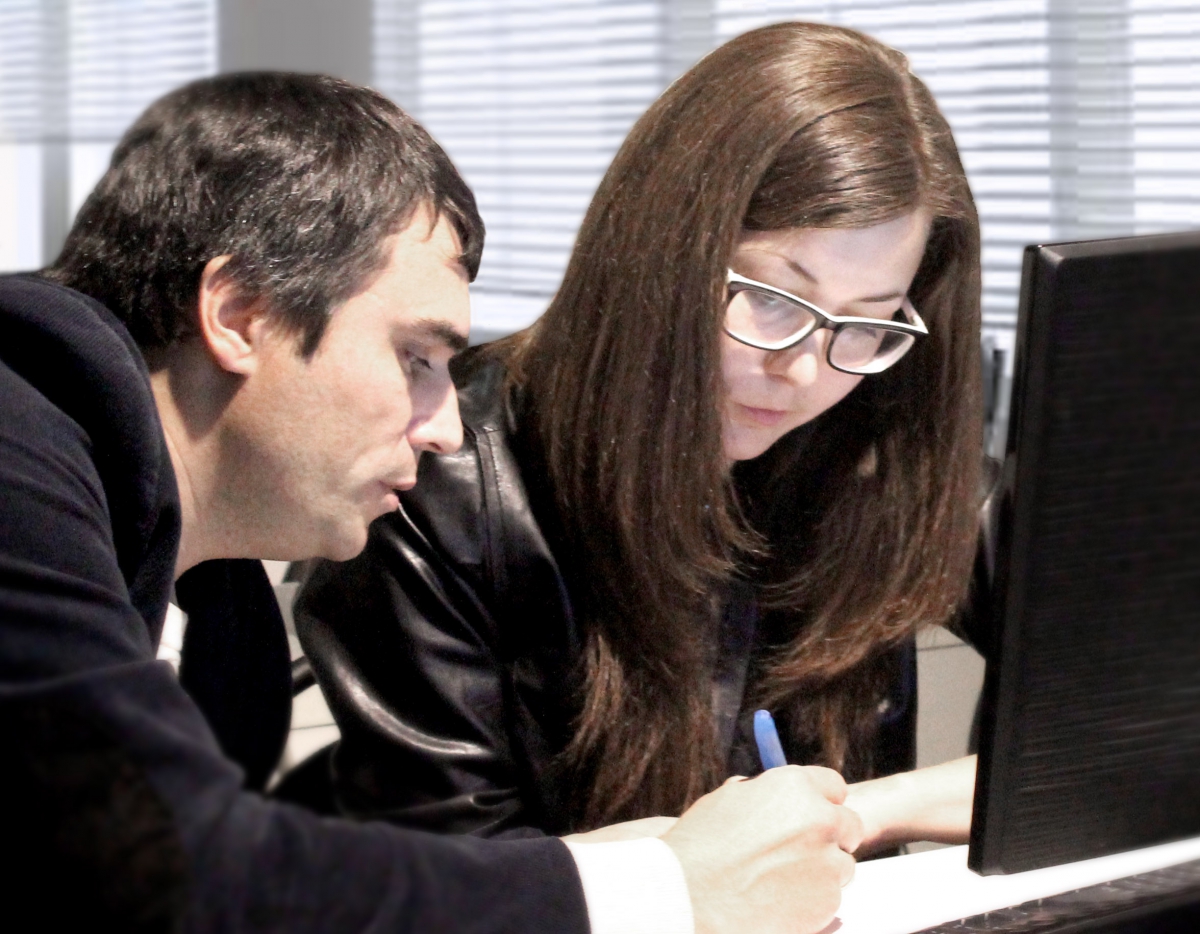
Обучение в аудитории
Москва
Termsrvdll Patch Windows Server 2022 Free Work ((hot)) Jun 2026
Because automated patching scripts can sometimes contain malware or become outdated after Windows updates, the safest method is using a hex editor (like HxD) to manually alter the binary code. Step 1: Gain Ownership of termsrv.dll
: Users who prefer not to modify system files permanently and want granular session controls.
systeminfo | findstr /B /C:"OS Name" /C:"OS Version" /C:"System Type" termsrvdll patch windows server 2022 free work
Whenever Microsoft releases a cumulative security update that touches the Remote Desktop component, it overwrites your patched termsrv.dll file. You will have to re-patch the file or locate new hex values after major updates.
RDP Wrapper is a "layer" that sits between the Service Control Manager and TermService, so it doesn't actually modify the DLL file itself. You will have to re-patch the file or
Once the file is replaced, restart the services to apply changes. Run the following command: net start TermService Use code with caution.
There are two primary methods to bypass the session limit: patching the system file directly or using a wrapper that intercepts calls to it. Method 1: The RDP Wrapper Library (Recommended) Instead of modifying termsrv.dll Run the following command: net start TermService Use
On Windows Server 2022, Microsoft designed this file to enforce the licensing model that allows a maximum of two concurrent administrative remote connections without purchasing additional Client Access Licenses (CALs). The patching process works by modifying specific sections of the DLL's code to "zero out" or bypass the instructions that enforce this limit.
Все материалы, опубликованные на сайте, являются объектами авторского и имущественного права. Любое их использование должно быть
согласовано с администрацией сайта. Никакие материалы этого сайта не являются публичной офертой. ИП Четвертаков И.А. ОГРНИП 312774634100068
г. Москва, ул. Шипиловская, д. 60 | +7 (909) 933-10-00 | 3dmax-online.ru © 2012-2021
г. Москва, ул. Шипиловская, д. 60 | +7 (909) 933-10-00 | 3dmax-online.ru © 2012-2021
ПОДЕЛИТЬСЯ